
Not Now / Block websites
How to block websites on a Mac: three ways
macOS brings one way with it. The other two work through a small system file, either by hand or with an app. They differ in which browsers they reach and in how easy they are to undo.
Short answer: Screen Time, built into macOS, can restrict websites and limit them per day, but Apple documents its website filter under Safari. The hosts file blocks a site in every browser at once, edited by hand in Terminal. An app like Not Now writes the hosts file for you, adds schedules and lifts the block with one click.
1. Screen Time
Open System Settings and click Screen Time. Under Content & Privacy you find the web filter; depending on your macOS version it sits in App Store, Media, Web & Games or in Apps & Websites, Restrictions, Filtering. Choose “Limit Adult Websites”, click Customize and add the sites you want restricted. “Allowed Websites Only” turns it around: everything is closed except your list.
Screen Time can also ration a site instead of closing it. In App Limits you add a website by its address and give it an amount of time, the same every day or different per weekday. For fixed hours there is Downtime on macOS 26, with one schedule for every day or one per day; its “Block at Downtime” needs a Screen Time passcode.
Screen Time is built in, costs nothing and limits apps as well as sites. It is also made for parents setting rules for a child, which shows in the passcodes. The open question for adults is the browser: Apple's guide lists the web filter under the heading Safari and does not say whether Chrome or Firefox follow it. Try it in the browser you actually use before you rely on it.
2. The hosts file, by hand
Every Mac has a small text file at /etc/hosts. macOS reads it before it asks the internet for an address, and browsers ask macOS. A line like 0.0.0.0 youtube.com sends that name nowhere, in every browser on the Mac at once.
It costs nothing and needs no app. It also needs Terminal, your administrator password for every change, a line for each name a site uses, and your memory to take the lines out again. There is no schedule. The hosts file guide walks through it line by line, pitfalls included.
3. An app that writes the hosts file: Not Now
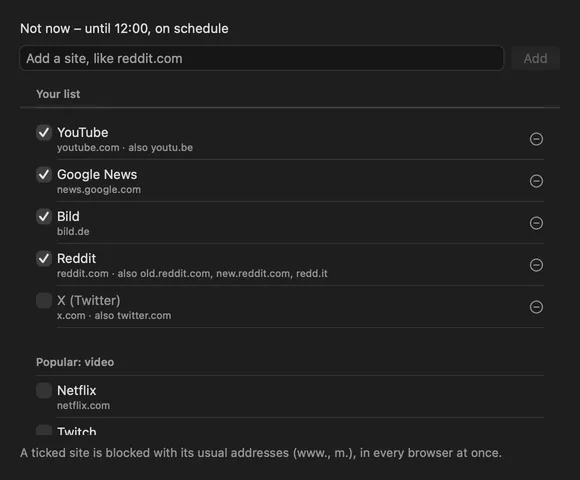
Not Now is a free menu bar app that does the second way for you. You tick sites in a list; it adds the usual addresses along with them (www., m., and known second names such as youtu.be or redd.it) and writes a line for IPv4 and one for IPv6 per name. You switch it on by hand, for a set time from 25 minutes to 4 hours, or on schedules with weekdays and hours. “Okay, Now” switches it off with one click, whenever you like.
It asks for your password once, to set up a small helper. The helper only edits Not Now's own lines between two markers, and the rest of your hosts file stays as it was, byte for byte. More on that in How it works.
What each way can and cannot do
Screen Time as described in Apple's Mac User Guide, read on 23 October 2026.
| Way | Browsers | Schedule | To undo | Cannot |
|---|---|---|---|---|
| Screen Time | Documented under Safari. Other browsers not mentioned by Apple. | Downtime (macOS 26), daily limits per site | Change the setting; with a passcode, enter it | Say for sure that it covers your other browsers |
| Hosts file by hand | Every browser that asks macOS. Tested with Safari's engine and Chrome. | None | Edit the file again with sudo | Schedules; it needs every name typed by hand |
| Not Now | The same file, written for you, with www., m. and known second names | Days and hours, also past midnight | “Okay, Now”, one click, any time | Block apps; block single pages such as youtube.com/shorts; block while it is not running |
Sources: Apple Support, web content in Screen Time, App Limits, Downtime on macOS 26. Menu names change between macOS versions; check the guide for yours.
Which one fits you
- You only use Safari and want a daily allowance, not a wall. Screen Time. Its App Limits give a site some minutes a day, which neither of the other two does.
- You want one site gone for good and never want it back. The hosts file by hand. Two lines, once, and nothing running in the background.
- You switch between browsers and want the block on weekday mornings. Not Now. Same file, in every browser, on a schedule, and off again with one click when you really do need that video.
Not Now will not make you earn your way out. If you want a blocker that locks you in until the timer runs down, it is the wrong tool, and we would rather tell you here. The questions on the home page cover the rest.
Last checked 23 October 2026.